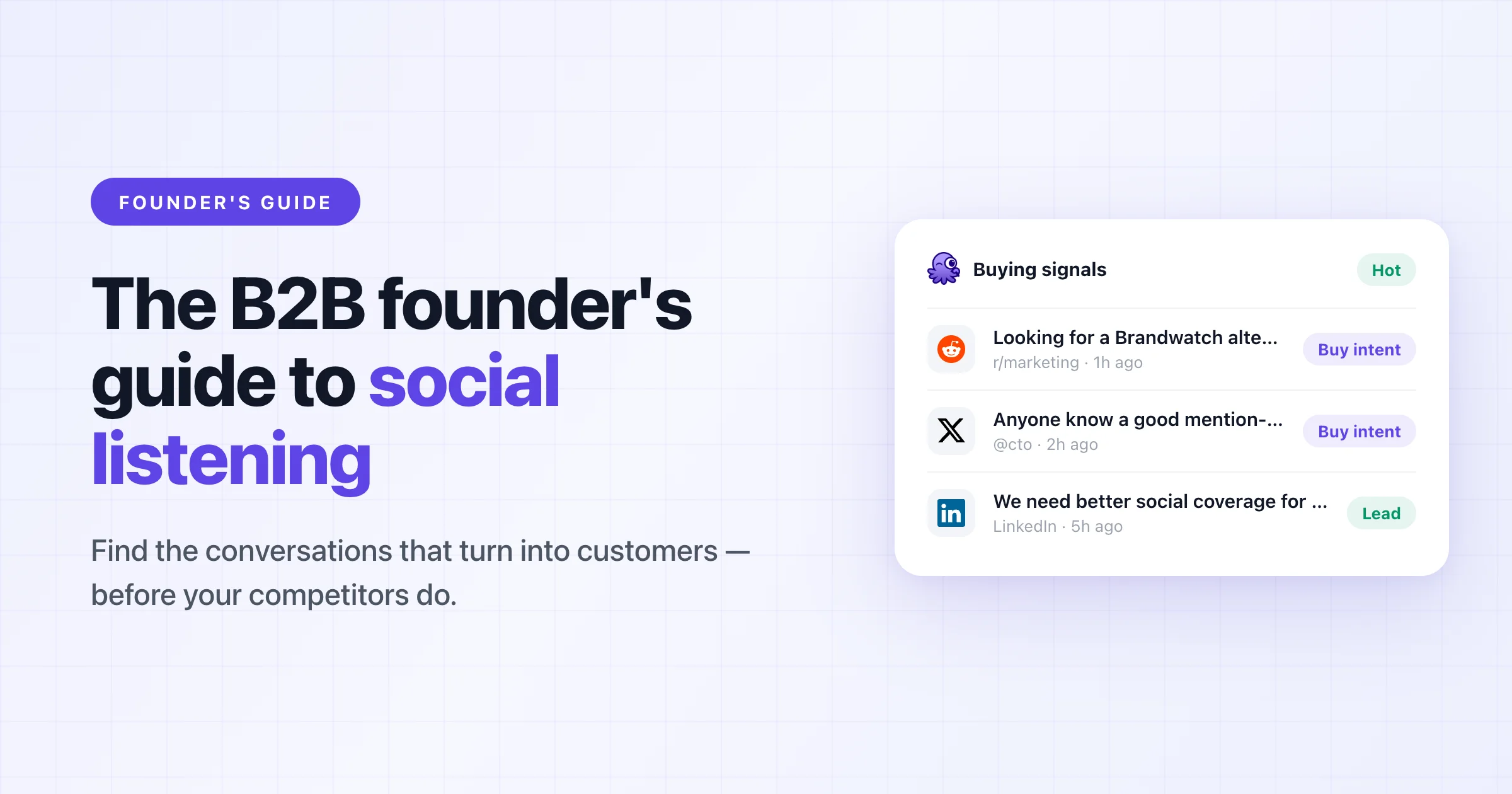
A B2B Founder’s Guide to Social Listening in 2026
Discover how B2B SaaS founders can leverage social listening and brand monitoring to uncover leads, safeguard their brand, and stay ahead in 2026.
I, like many other B2B SaaS founders, want to know the moment our brand is mentioned online—good or bad.
We also don’t want to miss out on opportunities to promote our product on social media whenever it’s relevant.
This guide will show you how to use social listening, including brand monitoring, to do exactly that and stay ahead in 2026.
I started my journey in B2B SaaS at a startup building a developer data platform.
Our customers were B2B DevTool companies whose success hinged on building engaged communities across their social channels.
When developers shared their tools, others were convinced to try them—more effectively than any paid ad.
Nurturing that organic excitement was a top priority. Over the years, I’ve seen how these engaged communities have become a go-to-market (GTM) strategy for the broader B2B SaaS space.
By 2026, buying decisions, brand reputations, and tool searches are taking place across multiple social media platforms every day. This has made social listening and brand monitoring essential for any (early-stage) B2B SaaS founder.
If that’s you, these points will likely resonate:
- Lead Generation: You want to know when someone is looking for your tool (e.g., complaining about the pain point you solve) or discussing a competitor so you can join the conversation or offer an alternative.
- Reputation Management: You want immediate awareness of brand or product mentions—especially negative ones (so you can do damage control) or positive ones (to amplify them). If this is your main goal, our brand reputation monitoring guide covers the metrics and early-warning signals in depth.
- Resource Efficiency: You don’t want to scroll endlessly through X (Twitter), LinkedIn, Reddit, Hacker News, Bluesky, and more. Nor do you want to hire someone to do this manually.
This guide explores how you can do all of the above effectively.
I built Octolens to tackle these pain points, but the bulk of these tips will help you even if you do it all manually (though you’ll lose out on time savings or time sensitive opportunities).
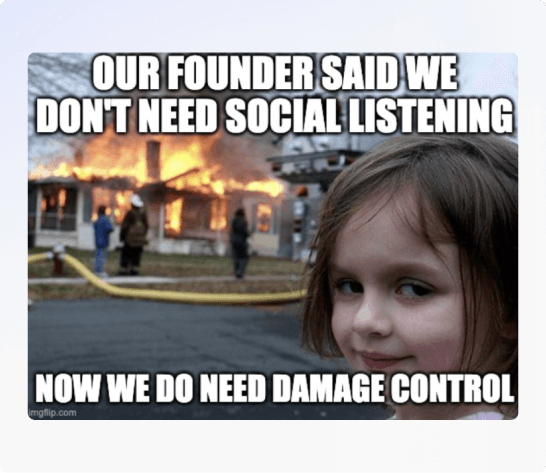
I’ve used both the terms Brand Monitoring and Social Listening, they are intertwined and most B2B SaaS founders care about both.
As the name already suggests, brand monitoring is focused on staying on top of direct brand and product mentions.
It's a part of Social listening which is the broader category.
Social listening can encompass tracking and analyzing all types of keywords and sentiment of your audience. What your activities will be skewed to will definitely be impacted by the stage your company is currently in and your goals.
If you are much smaller, you'll obviously have less direct brand mentions and you’ll spend less time on brand monitoring.
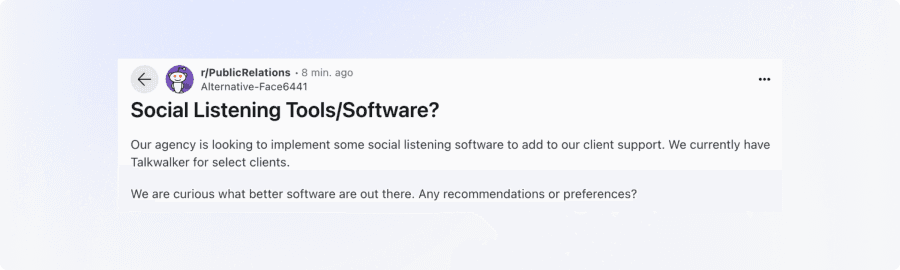
Your focus will rather be on monitoring competitors or industry terms to be able to create more opportunities for you to mention your brand. For example: If I am looking to sell Octolens I’ll monitor for people searching for “Social listening tools” or a competitor name
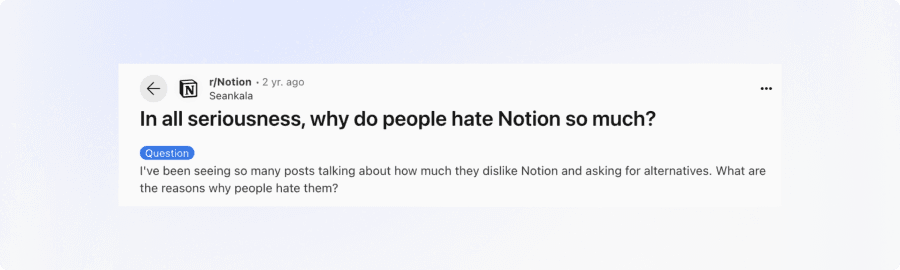
For larger brands they might have many mentions a day and will care much more about the current positive or negative sentiment around their brand. For example: A team at Notion might monitor closely the dozens of daily brand mentions (like this one on Reddit):
In this guide I will focus on both aspects and encompass brand monitoring as a part of social listening.
I will also note that the content in this guide is most relevant to B2B SaaS founders of small to medium sized businesses.
Once you reach really large 500+ enterprise stages you’ll have a different set of concerns.
Brand monitoring and social listening boil down to these core steps:
- Identify key channels where your audience and industry peers are most active (e.g., LinkedIn, Twitter/X, Reddit, Hacker News).
- Define the keywords you need to track—brand names, product names, competitor names, and specific pain points.
- Monitoring your channels either with a social listening tool or manually to find relevant conversations based on the keywords.
- Take action, for example, to respond quickly and thoughtfully to mentions that matter (both positive and negative) or learn from current sentiment to apply to your business (e.g., add a new feature).
The sections below will dive deeper into how you can excel at each step.
The platforms below consistently draw B2B SaaS founders, decision makers, and developers seeking product recommendations, sharing best practices, or venting about current solutions.
You'll likely want to monitor them all +/- a few depending on your specific niche and target customer profile (ICP):
- X (fka Twitter): Quick, real-time discussions. Users often post about a product they love or hate. It’s also a popular channel for startup news and asking for product recommendations.
- LinkedIn: The go-to professional network. Most B2B leaders, team members, and prospects are active here, discussing trends and posting job updates or product recommendations.
- Reddit: Home to niche subreddits (e.g., r/SaaS, r/Entrepreneur, r/Marketing). Users share genuine feedback and look for “best tool” recommendations. They also share their unfiltered thoughts. Reddit is so important, recently purchased by Google, Google is pushing it further up their search results and drive a lot of traffic.- Hacker News: A tech-centric community run by Y Combinator. Discussions can trend quickly, and a single mention could generate significant leads or reputational hits.
- Bluesky: A newer, decentralized social platform gaining momentum among early adopters and tech enthusiasts. Could be a hidden goldmine for forward-looking SaaS founders - a lot of people have been migrating from X to Bluesky, so you’ll want to cover both.
- YouTube: With over two billion logged-in users each month, YouTube isn’t just for entertainment—it’s a massive hub for product demos, tutorials, and thought leadership content. B2B SaaS founders can showcase how their software works in real-world scenarios, while prospects often watch “how-to” videos and unbiased reviews before making buying decisions.
- GitHub: A central hub for open-source projects and developer collaboration. If your SaaS caters to a technical audience, GitHub can be a goldmine of feedback. It’s where developers discuss feature requests, report bugs, and compare tools—making it crucial for capturing early signals of community sentiment.
- Stack Overlow: The largest Q&A platform for developers seeking help with specific coding challenges. Mentions of your SaaS here often arise when users need troubleshooting tips or integration advice. A well-placed, helpful response can position your brand as a reliable technical resource, driving both trust and potential sign-ups.
- DEV: An active community platform where developers share articles, tutorials, and personal experiences. It’s known for its supportive ethos and engaged readership. Founders and dev advocates can post relevant content, comment on technical discussions, and keep a pulse on emerging trends in their niche. - **Niche Forums:**Beyond mainstream sites, specialized forums often host deep-dive conversations about unique problems. Engaging on these platforms can help you stand out as a subject-matter expert, uncover smaller but highly motivated user segments, and gather unfiltered product feedback. These forums will be unique to your industry and you’ll need to do some research.
Depending on your niche you may also want to focus on Facebook groups, TikTok, or Instagram, however those tend to be more relevant for B2C companies.
When doing social listening your essentially monitoring for this type of “behavior” on the above platforms:
- Brand love or complaints: People love to give brands or products shout outs, but they also use social media to air out their grievances and issues. Sometimes they tag your brand, sometimes they don’t.
- Problem-Solving: Users post issues or questions they need help solving (maybe your product can help!)
- Peer Recommendations: Trusted community members weigh in with honest reviews and give tool recommendations.
- Competitive Research: Keep an eye on competitor announcements or complaints.
- Trend Watching: People crowdsource ideas about “the next big thing,” often leading to immediate product trials or demos.
Goals can, for example, include:
- Lead Generation: Find real-time signals from people who are actively seeking solutions like yours.
- Reputation Management: Quickly address negative feedback, amplify positive mentions, and ensure your brand image stays strong.
- Community Building: Engage in relevant threads, forums, and social posts to become a known, helpful resource in your niche.
It depends on your goals, but generally you’ll want to cover all of the above. For that you’ll need a mix of keywords, including:
- Brand & Product Names: Include variations, domains, and social handles.
- Competitor Names: Uncover potential leads when people complain about or seek alternatives to your competitors.
- Relevant Industry Terms: E.g., “social media monitoring,” “project planning tool,” “no-code workflow automation.”
- Pain Points: Phrases that indicate someone is dealing with the exact problem your product solves E.g., “Data drift”.
Some more things to consider when choosing your keywords:
- Be Specific: Use longer phrases to filter out noise.
- Avoid Common Words: If your brand name is also a common word, refine further (e.g., “Apple Inc.” instead of just “Apple”).
- Consider Multiple Languages: Some brand names have unintended meanings elsewhere.
- Test & Tweak: It’s normal to need a few iterations before hitting the sweet spot.
Being specific and avoiding common words is especially important if you are trying to monitor manually.
Good luck getting through the keywords “AI agent” every day!
Social listening is time consuming when done manually.
Not just that, it's often very time sensitive.
The shelf-life of an X post or Reddit conversation is not very long.
If you want to jump in quickly and consistently, a social listening tool will be of huge help.
And if you convert just one customer, you’ll usually have your monthly subscription covered in no time. If using a tool like Octolens you’ll:
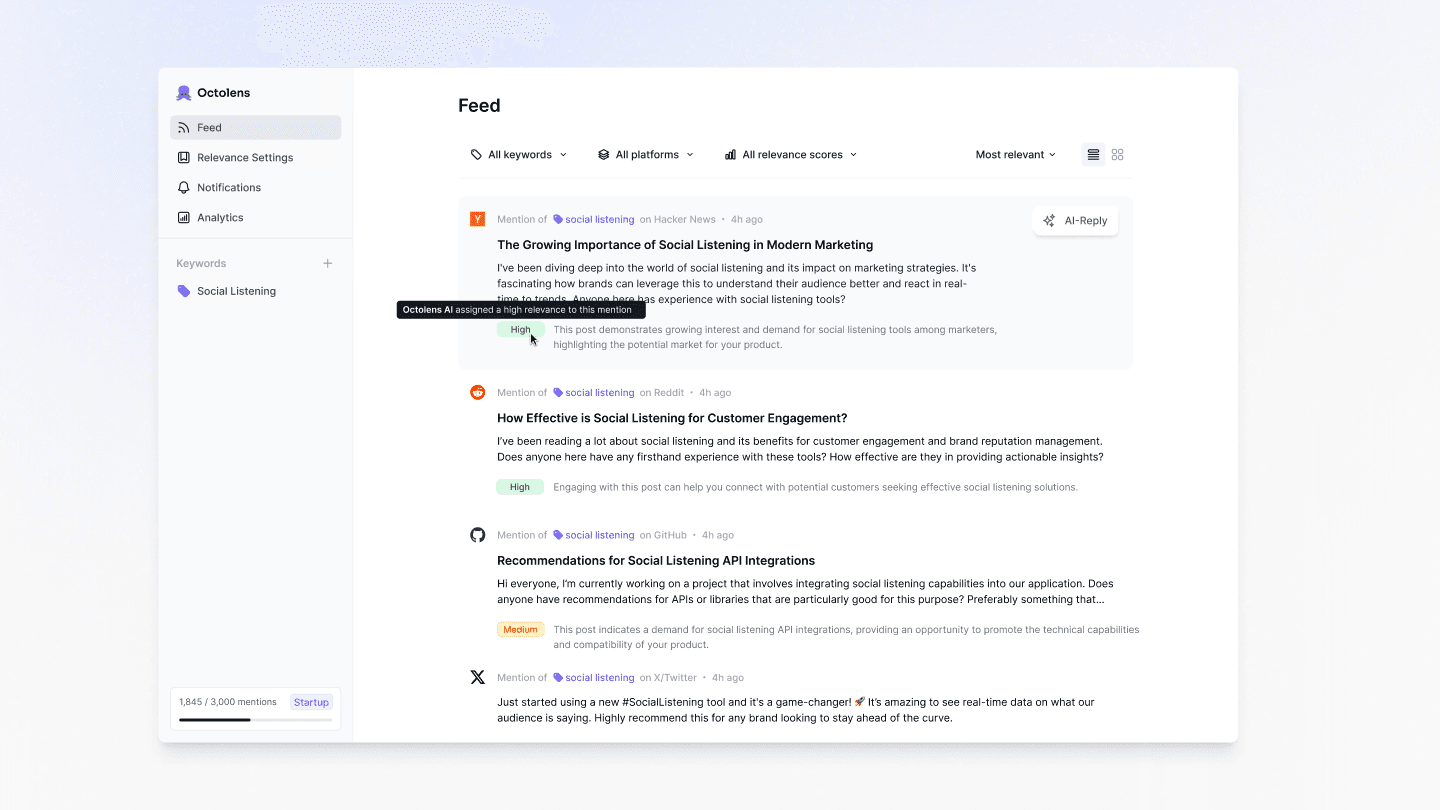
- Set Up Custom Alerts: Configure email, Slack, or in-app notifications for immediate engagement.
- Score Relevancy: Let AI highlight the conversations most likely to convert (high buy-intent signals) or require immediate attention (praise or complaints for example).
- Consolidate Cross-Platform Monitoring: Instead of juggling multiple sites, you’ll have a unified view that aggregates mentions from Twitter/X, Reddit, LinkedIn, Hacker News, and more.
*Side Note: When you first sign up for Octolens and choose keywords, we fetch up to 7 days of historical posts on each platform (100 per platform during onboarding).
If you test it out you can see what kind of opportunities you might be missing straight away.*
- Roles: Know who is responding to what type of alert
- Protocols: Are you aligned with how you’ll respond?
It’s always most impactful when a founder answers, but that’s not always feasible.
Just be clear who takes on what types of mentions - maybe you can split up by keyword type or content.
I often get asked, why not just set up Google Alerts? While it’s free, it often misses critical mentions because:
- Delayed Notifications: Google Alerts doesn’t index everything in real time.
- Missing Mentions: Platforms like Twitter, Reddit, LinkedIn aren’t always picked up quickly.
- Irrelevant Results: Basic text matching brings in tons of noise if your brand name is a common word.
- Limited Customization: You can’t refine or score mentions with AI.
Google Alerts can serve as a baseline, but for real-time engagement and cross-platform visibility, it falls short.
I went to detail on why google alerts is not enough here if you are interested.
Collecting brand or competitor mentions is only the first step. You also want to turn those mentions into customers or community advocates.
- Engagement Techniques
- Respond Quickly: Aim to reply within minutes or hours, not days. Early engagement shows genuine interest and sets a positive tone.Add Value: Don’t just drop a link. Share a quick insight, a relevant experience, or a solution tip before introducing your product.
- Follow-Up
- Private Messaging: If someone’s truly interested or has a question, take it to DMs or email to continue the conversation.Offer a Demo: Provide a free trial or a short demo if they’re open to learning more.Partnership Opportunities: Not every mention is a direct sale; some might lead to co-marketing, affiliate partnerships, or influencer collaborations.
- Case Example
A founder tracking competitor mentions on Reddit spots a post: “Really unhappy with X competitor—any alternative suggestions?” They jump in, share a polite rundown of how their product differs, and invite the poster to try a demo.
Within a day, that user scheduled a call and became a paying customer.
See my own example below:
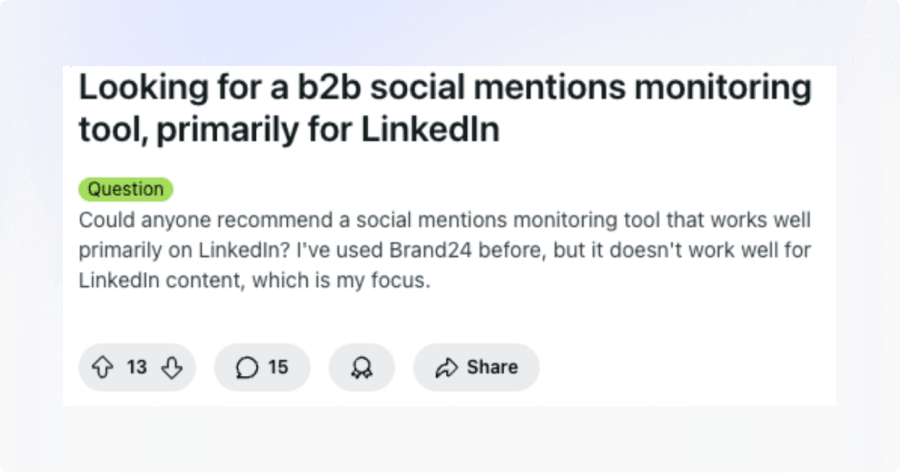
Someone is looking for an alternative to a competitor of Octolens which I track
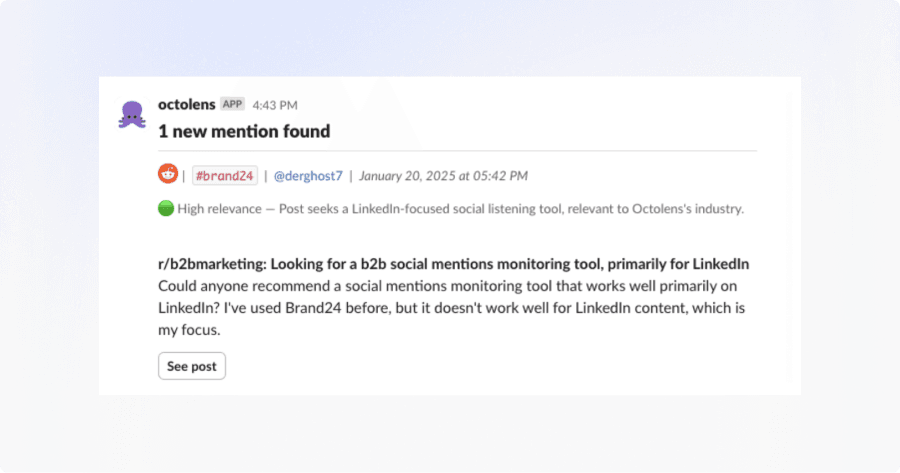
I get alerted in Slack by Octolens of a high relevance mention
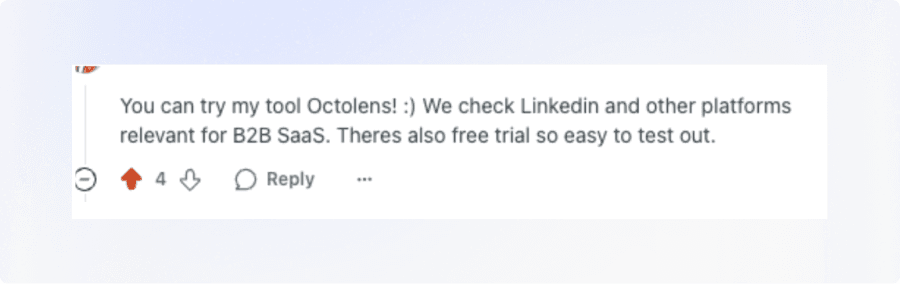
I respond going into the nuances of the question
The customer converts!
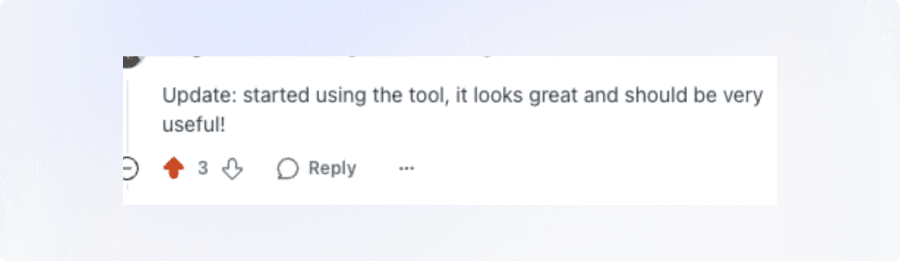
Besides this customer who converted instantly, there will be others who may see this Reddit post - especially because Reddit ranks very well on Google.
So you might convert many more people with social listening and engagement than you officially can attribute.
Having over +1,000 founders and GTM team members using Octolens and a lot of social listening under my belt, I have also learnt a lot about what not to do.
Here are 6 mistakes I’ve seen founders and GTM teams make that you should avoid.
- Problem: Coming across as spammy by dropping a product link with zero context.
- Fix: Provide a thoughtful response or tip first, then naturally segue into your product mention.
- Problem: People value transparency, especially on Reddit.
- Fix: State who you are and why you’re recommending your own product or solution.
- Problem: Missing out on high-intent threads or overloading on irrelevant topics.
- Fix: Monitor competitor names, key pain points, and multiple variations of your own brand name.
- Problem: Overly generic responses that read like a bot.
- Fix: Edit AI outputs to include personal expertise and brand nuances.
- Problem: Overlooking potentially valuable discussions on Reddit, Twitter/X, Hacker News, and smaller communities.
- Fix: Employ a cross-platform monitoring strategy (manual or via a tool like Octolens).
- Problem: Checking mentions only sporadically. You’ll miss time-sensitive opportunities.
- Fix: Use a real-time social listening tool to stay on top of every relevant mention.
In 2026, social listening and brand monitoring aren’t just nice-to-haves for B2B SaaS founders—they’re essential.
With the right platforms, refined keywords, and (ideally) an AI-powered tool, you can:
- Uncover high-intent leads who are actively seeking solutions like yours.
- Proactively shape brand reputation by engaging in discussions as they happen.
- Free up time and resources to focus on your core business instead of manually scrolling through feeds.
If you’re ready to level up your social listening strategy, Octolens provides real-time, AI-powered monitoring across X (Twitter), Reddit, LinkedIn, Bluesky, YouTube, Hacker News, GitHub, and more.
I also share tips on social listening over on my X. You can follow me there for more!