
Option 1: Connectors (Pro, Max, Team and Enterprise)
1
Add a custom connector
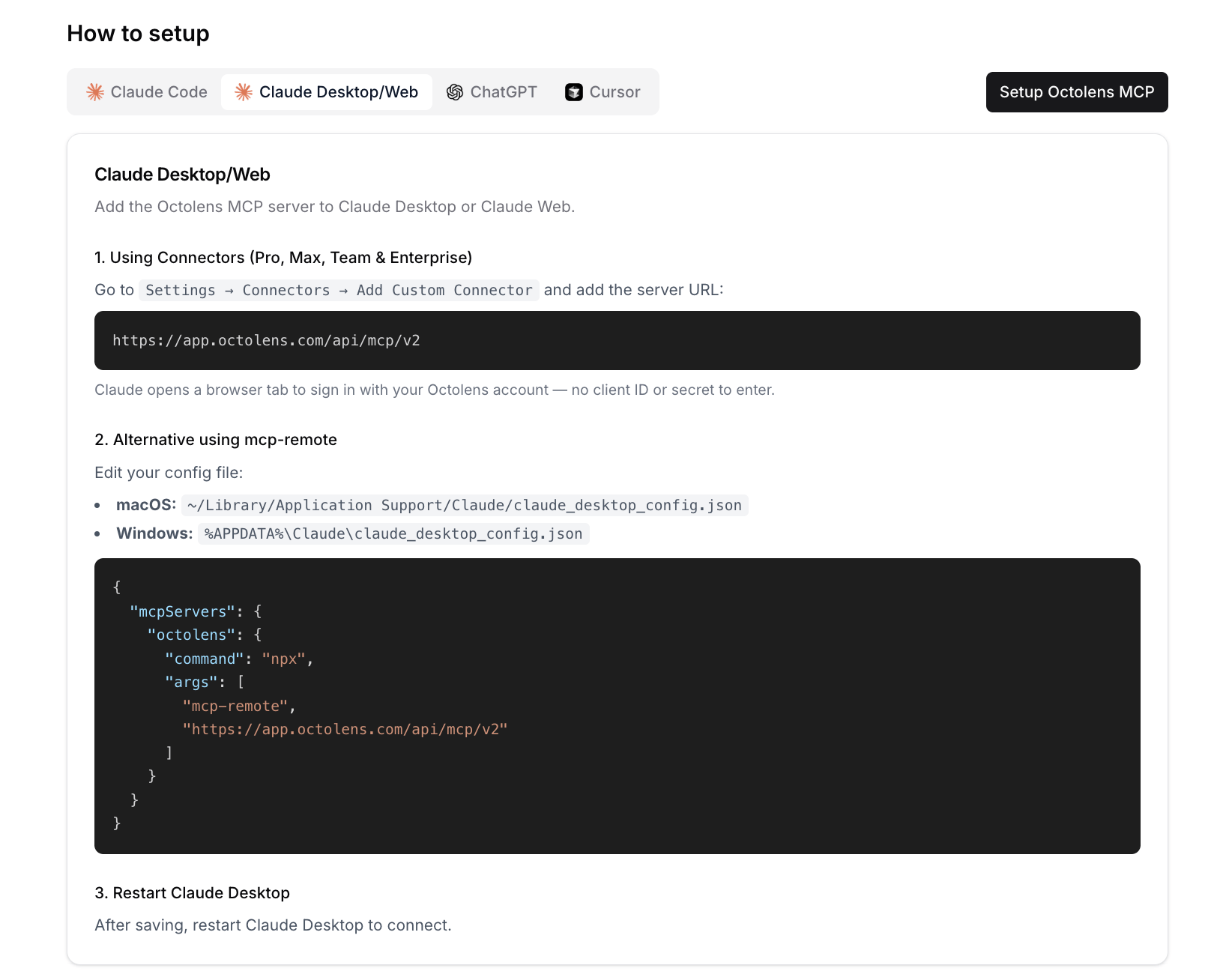
In Claude, go to Settings → Connectors → Add Custom Connector and paste this URL:
2
Sign in to Octolens
Claude opens a browser tab. Sign in with your Octolens account and approve the connection. You don’t need a client ID or secret.
Option 2: Config file (mcp-remote)
1
Edit your config file
- macOS:
~/Library/Application Support/Claude/claude_desktop_config.json - Windows:
%APPDATA%\Claude\claude_desktop_config.json
2
Restart Claude Desktop
Restart the app after saving. On first use, a browser tab opens so you can sign in to Octolens.
Try it
- “Summarize what people said about us on Reddit this week.”
- “Show me buy-intent mentions from the last 30 days.”
Next steps
- Use cases: prompts that work well
- Tools Reference: everything Claude can do in your workspace
- API and CLI: for scripts and automations