
Open Keyword Settings
Open the Keywords page from the sidebar, find the keyword in the table, and click Edit (or use the ··· menu at the end of the row and choose Keyword settings). The settings open as a side sheet.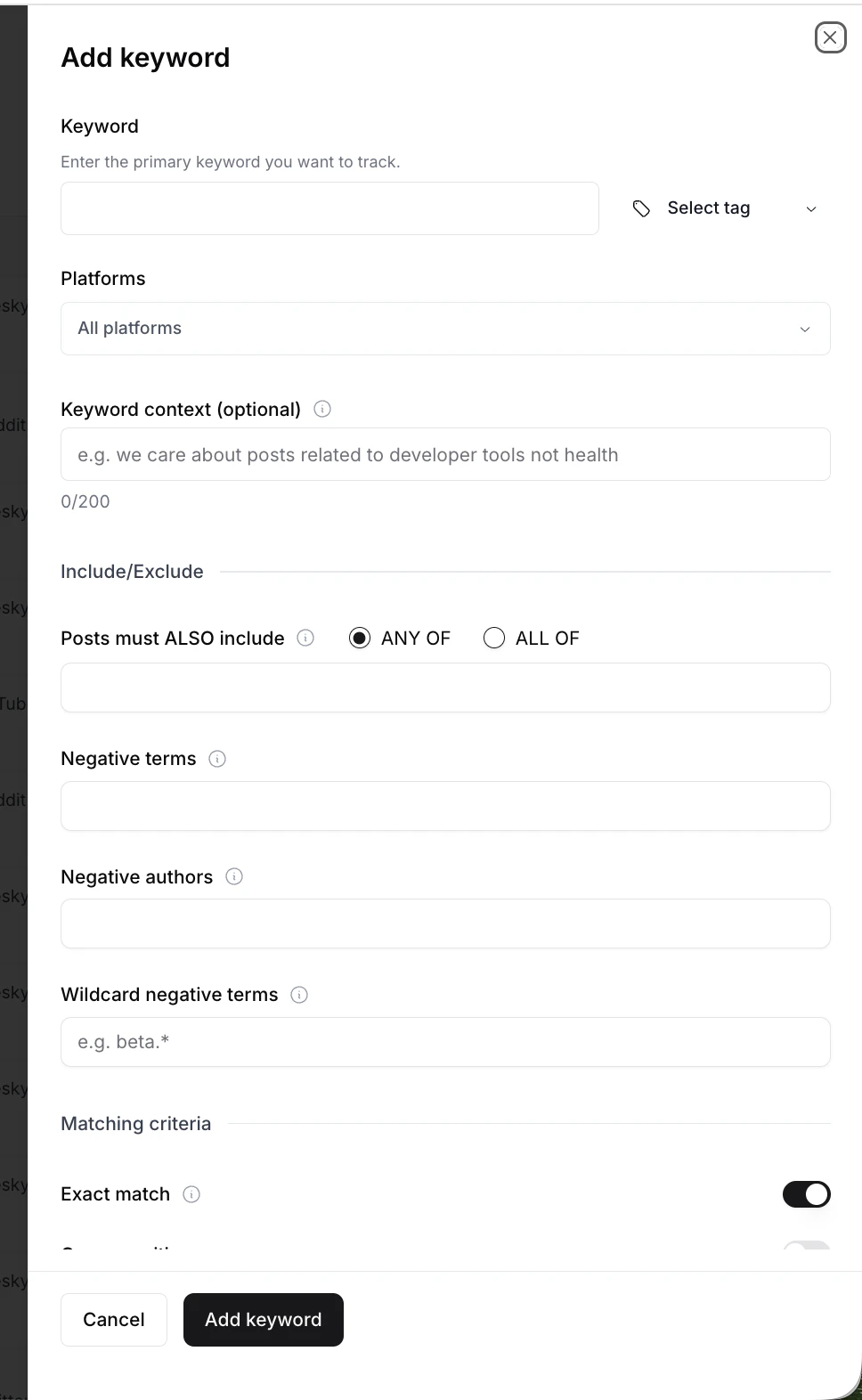
The Keyword Settings sheet, opened from the Keywords page.
Sheet anatomy
The settings sheet is grouped into four sections from top to bottom:Header: keyword and tag
- Keyword: the term you’re tracking. You can edit it here, but changing the keyword only affects new mentions going forward.
- Tag: Own Brand, Competitor, or Industry Term. Auto-assigned by AI, editable from the Select tag dropdown if it’s wrong.
Platforms
Select the platforms Octolens searches for this keyword. By default every platform your plan supports is enabled. Deselect a platform to stop pulling mentions from it for this keyword only. Useful when a keyword is noisy on one platform but valuable on others. For example, keeping a generic industry term on Reddit and Hacker News but turning it off on X. See Tracked Platforms for the full list and refresh intervals.Keyword context (optional)
Up to 200 characters of extra context that helps the AI score posts for this specific keyword. Octolens already uses your company context. This field is for rules that apply to one keyword only. Use it when:- Your keyword is also a common word (e.g.
Anything,Modal,Railway) - Your keyword is a broad industry term (e.g.
social listening) - You want to scope mentions to a specific segment
Our brand Anything is an AI tool. Ignore posts using “anything” as a common word.
Only include posts about social listening in a B2B SaaS context. Exclude B2C brands like Nike.
Include / Exclude
Posts must ALSO include: ANY OF / ALL OF
Require that matching posts contain other terms in addition to your primary keyword. One field with a toggle between two modes:- ANY OF: the post must contain your keyword and at least one of the extra terms.
- ALL OF: the post must contain your keyword and all of the extra terms.
ANY OF example. KeywordGitHub, extrasAI, Copilot. Matches posts mentioning GitHub and at least one of AI or Copilot. ALL OF example. KeywordGitHub, extrasAI, Copilot. Matches posts mentioning GitHub and AI and Copilot.
Negative terms
Comma-separated terms that exclude posts when they appear alongside your keyword.KeywordGitHub, negative termRunner. Posts mentioning both GitHub and Runner are excluded.
Negative authors
Comma-separated author handles to exclude. Matching is exact. Use this to filter out your own company accounts, employees, or known spammers. You can also add negative authors directly from any feed. Click on the author name of any post and select Add as negative author from the dropdown. You’ll be asked whether to exclude them for just the keyword of that mention or for all keywords (global). For X/Twitter handles, don’t include the@. Just the handle itself (e.g. OctolensHQ, not @OctolensHQ).
For account-wide author exclusions, use Global Keyword Settings instead.
Wildcard negative terms
Exclude patterns using* as a multi-character wildcard. Anything starting with your prefix before the * will be excluded.
Use wildcards for structured patterns like version strings, subdomain chunks, or internal ID prefixes. For plain words, stick with Negative terms.beta.*excludesbeta.0.1,beta.0.2.com,beta.test, and so on.
Matching criteria
Exact match
On by default. Matches only when your keyword appears as a standalone term. Exact match still catches common brand variants like domains, handles, and possessives. Turn it off for broad matching. Your keyword will also match when it appears inside longer strings (for example, we would catchoctolens inside support.octolens.io).
Case sensitive
Off by default. Turn it on when your keyword is an acronym or a common-word brand you only want to match in a specific case.
Keyword RAG with case sensitive on: matches “RAG” but ignores “rag.”
Saving changes
Keyword Settings changes apply to new mentions going forward. Existing mentions in your feeds keep their original scoring.
Next steps
- Global Keyword Settings: exclusions that apply to every keyword at once
- Feeds: organize mentions across keywords into saved filters
- AI Relevance & Tags: how Octolens scores and tags each mention