
Connect your Slack workspace
1
Go to Settings
Open Settings in your Octolens workspace.
2
Open the Integration for Slack tab
Click the Integration for Slack tab at the top of the Settings page.
3
Authorize Octolens in Slack
Click Connect and authorize the Octolens app for your Slack workspace. You’ll be redirected to Slack to approve the permissions, then bounced back to Octolens.
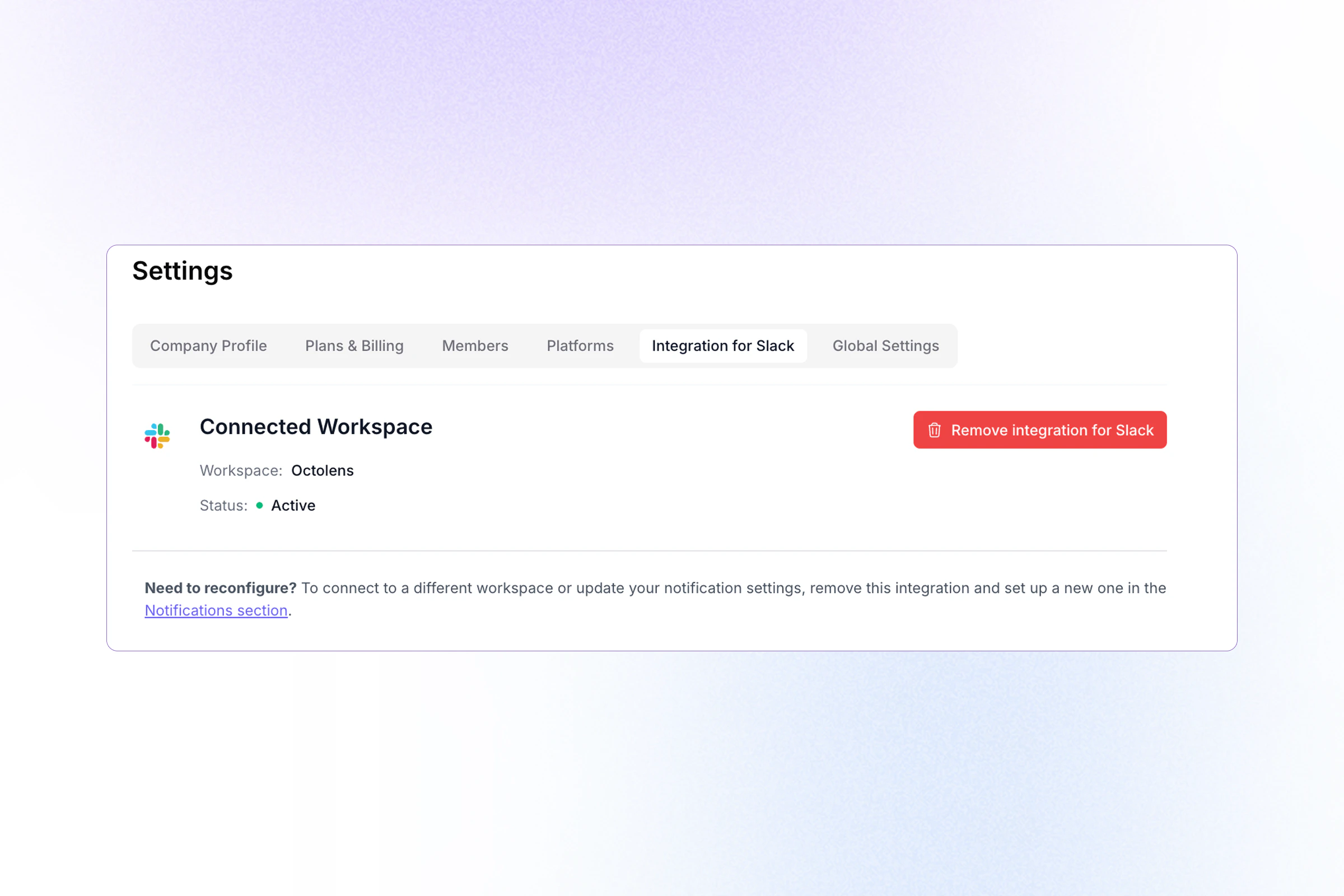
Settings → Integration for Slack, showing an active connection.
Confirm you’re connected
After authorizing, the Integration for Slack page shows:- Workspace: the name of your connected Slack workspace
- Status:
Activewhen the connection is healthy
What you can send to Slack
Any feed can be sent to Slack, which means you control exactly which mentions reach your team. Some common patterns:- Send Brand mentions to a dedicated
#brand-watchchannel - Send Buy Intent posts to your sales team’s channel
- Send Negative brand mentions to a leadership or comms channel
- Send a custom feed (e.g. “negative mentions of our pricing”) to the product team
Pick channels and frequency
Channel selection and delivery frequency are configured per feed, not on this page:- Slack channels: multi-select; a feed can post to more than one channel
- Frequency: Instantly, Hourly, Daily, or Weekly (batched)
Disconnect or switch workspaces
To disconnect Slack, click Remove integration for Slack on the Integration for Slack tab. To switch to a different Slack workspace, remove the existing integration and then connect again. You’ll be able to pick a new workspace during authorization.Removing the integration stops all Slack deliveries immediately. Feeds configured to send to Slack will pause until a new workspace is connected.
Next steps
- Destinations: set up Slack channels + delivery frequency on a feed
- Feeds: the saved filters that drive your destinations
- Webhooks: another way to pipe mentions into your tools