> ## Documentation Index
> Fetch the complete documentation index at: https://octolens.com/docs/llms.txt
> Use this file to discover all available pages before exploring further.
# Feeds
> Saved filters over your mentions. Use defaults like Brand Mentions and Buy Intent, or build your own. Send any feed to a destination.
Feeds are saved filters over your mentions. Think of them as playlists for what you want to pay attention to. Most customers live inside a handful of feeds rather than scrolling through every mention.
Every feed can be sent to one or more [destinations](/quickstart/destinations) (Slack, email, or webhook), so matching mentions land where your team already works.
## How the Feeds sidebar is laid out
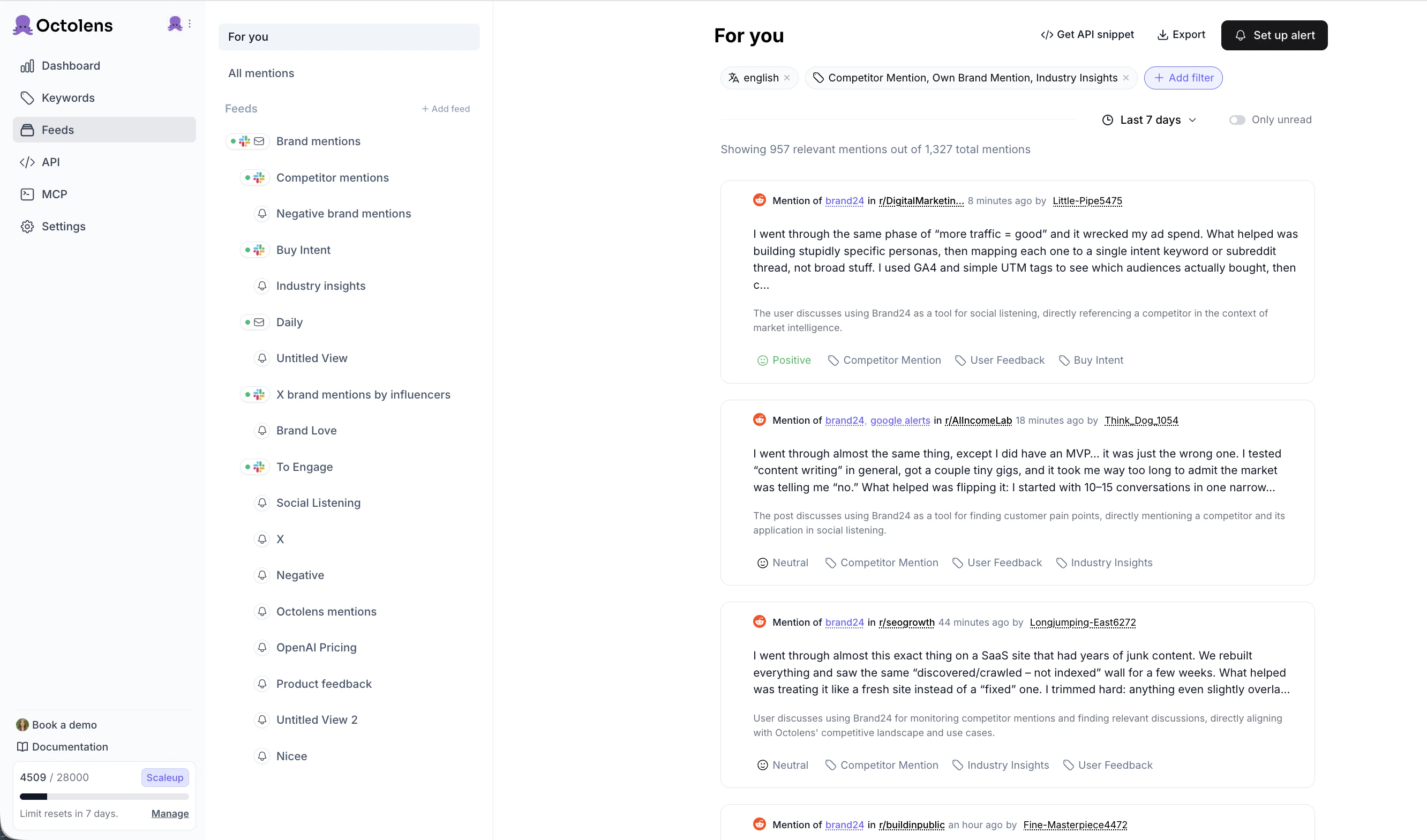 Two entries sit above the **Feeds** header and are always pinned:
* **For you:** a curated default feed across Own Brand, Competitor, and Industry Term keyword mentions. A good home screen.
* **All mentions:** literally every mention Octolens pulls in, **including low-relevance ones**. Use this when you're investigating what's being filtered out.
Below the Feeds header sit the **default feeds** (pre-configured for common workflows) and any **custom feeds** you've created. Click **+ Add feed** at the top of the list to create a new one.
## Default feeds
| Feed | What it shows |
| --------------------------- | ------------------------------------------------------------------------------------------------------------------------- |
| **All mentions** | Every mention, both relevant and not relevant |
| **Brand mentions** | Posts that mention your brand directly, tag `Own Brand Mention` |
| **Competitor mentions** | Posts that mention your competitors. Useful for market sentiment, content ideas, and gap-spotting |
| **Negative brand mentions** | Posts about your brand with negative sentiment. Use this to act quickly and protect your reputation |
| **Buy Intent** | Posts where people express intent to buy or switch tools, like "looking for a \[tool]" or "alternatives to \[competitor]" |
| **Industry insights** | Posts tagged `Industry Insights`, conversations about your category whether or not they mention your brand |
You can edit any default feed. Just open it, adjust the filters, and save.
## Feed controls
Every feed shows the same controls at the top:
* **Time range:** Last 7 days (default), Last 30 days, Last 90 days, Last 6 months, Last 1 year, or Custom
* **Only unread** toggle: hide mentions you've already seen
* **Relevant vs. total counter:** e.g. *"Showing 957 relevant mentions out of 1,327 total mentions."* Tells you how tight your filters are.
* **Set up alert:** open the [destination](/quickstart/destinations) sheet for this feed
* **Get API snippet:** copy a ready-made [API](/api/v2/overview) call that returns the same mentions as this feed
* **Export:** download the current feed as a [CSV](/quickstart/csv-export)
## Custom feeds
Build your own feed when none of the defaults match your workflow.
Next to the **Feeds** header in the sidebar.
Click **+ Add filter** and pick one or more of the categories below. Each filter narrows your results.
Give it a name and save. It appears in your sidebar under Feeds.
You can also open any existing feed, tweak the filters, and save changes, or duplicate it under a new name.
## Available filters
### Keyword
Scope to one or more of your tracked keywords. Example: narrow a feed to just `Octolens` + `social listening`.
### Platform
Filter by source. Options: LinkedIn, Stack Overflow, GitHub, DEV, Reddit, Hacker News, Twitter/X, YouTube, TikTok, Bluesky, Newsletter. See [Tracked Platforms](/learn/platforms/overview) for what's monitored where.
### Language
Filter by detected language. Supported: English, Spanish, French, Chinese, Portuguese, Russian, Italian, Japanese, Korean, German, Dutch.
### Tag
Filter by AI-assigned tag. Every mention gets one or more of these:
`Own Brand Mention` · `Competitor Mention` · `Industry Insights` · `Product Question` · `Buy Intent` · `User Feedback` · `Bug Report` · `Hiring` · `Event` · `Promotional Post` · `AI generated`
See [AI Relevance & Tags](/learn/ai-relevance) for what each tag means.
### Sentiment
Filter by `Positive`, `Neutral`, or `Negative`. See [Sentiment Analysis](/learn/sentiment).
### X Followers
On X/Twitter mentions only, filter by the author's follower count. Set a **Min** and/or **Max**. Useful for "only show posts from influencers" (min 10,000) or "only show posts from everyday users" (max 5,000).
## Advanced filter
When simple AND-across-filters isn't enough, use Advanced filter to build nested Boolean logic.
Each rule has three parts:
* **Field:** pick a filter like Tag, Sentiment, Keyword, Platform, Language, or X Followers
* **Operator:** for example `Contains`, or a comparator for numeric fields
* **Values:** one or more values for that field
From there, you can:
* **+ Add single filter rule:** add another rule at the same level, combined with AND
* **+ Add filter group:** nest a set of rules inside parentheses, giving you AND/OR composition (e.g. *(A AND B) OR C*)
* **Delete advanced filter:** remove the advanced filter entirely
> **Example.** *(Sentiment = Negative AND Tag = Own Brand Mention) OR Tag = Bug Report*. A feed that surfaces anything negative about your brand, plus any bug reports regardless of sentiment.
Advanced filter appears as its own pill alongside regular filters at the top of the feed, so you can still layer standard filters (like language) on top of it.
## Edit or delete a feed
* **Edit a feed:** open it, change the filters or time range, and save.
* **Delete a feed:** click the **···** next to the feed name in the sidebar and choose **Delete**. Default feeds can be edited but not deleted.
## Send a feed to a destination
Every feed, default or custom, can be wired up to send new matching mentions to Slack, email, or a webhook. Open the feed and click **Set up alert** in the top right.
See [Destinations](/quickstart/destinations) for the full setup.
## Next steps
* [Destinations](/quickstart/destinations): send feed matches to Slack, email, or webhooks
* [AI Relevance & Tags](/learn/ai-relevance): understand the tags you can filter by
* [Sentiment Analysis](/learn/sentiment): how sentiment gets assigned
Two entries sit above the **Feeds** header and are always pinned:
* **For you:** a curated default feed across Own Brand, Competitor, and Industry Term keyword mentions. A good home screen.
* **All mentions:** literally every mention Octolens pulls in, **including low-relevance ones**. Use this when you're investigating what's being filtered out.
Below the Feeds header sit the **default feeds** (pre-configured for common workflows) and any **custom feeds** you've created. Click **+ Add feed** at the top of the list to create a new one.
## Default feeds
| Feed | What it shows |
| --------------------------- | ------------------------------------------------------------------------------------------------------------------------- |
| **All mentions** | Every mention, both relevant and not relevant |
| **Brand mentions** | Posts that mention your brand directly, tag `Own Brand Mention` |
| **Competitor mentions** | Posts that mention your competitors. Useful for market sentiment, content ideas, and gap-spotting |
| **Negative brand mentions** | Posts about your brand with negative sentiment. Use this to act quickly and protect your reputation |
| **Buy Intent** | Posts where people express intent to buy or switch tools, like "looking for a \[tool]" or "alternatives to \[competitor]" |
| **Industry insights** | Posts tagged `Industry Insights`, conversations about your category whether or not they mention your brand |
You can edit any default feed. Just open it, adjust the filters, and save.
## Feed controls
Every feed shows the same controls at the top:
* **Time range:** Last 7 days (default), Last 30 days, Last 90 days, Last 6 months, Last 1 year, or Custom
* **Only unread** toggle: hide mentions you've already seen
* **Relevant vs. total counter:** e.g. *"Showing 957 relevant mentions out of 1,327 total mentions."* Tells you how tight your filters are.
* **Set up alert:** open the [destination](/quickstart/destinations) sheet for this feed
* **Get API snippet:** copy a ready-made [API](/api/v2/overview) call that returns the same mentions as this feed
* **Export:** download the current feed as a [CSV](/quickstart/csv-export)
## Custom feeds
Build your own feed when none of the defaults match your workflow.
Next to the **Feeds** header in the sidebar.
Click **+ Add filter** and pick one or more of the categories below. Each filter narrows your results.
Give it a name and save. It appears in your sidebar under Feeds.
You can also open any existing feed, tweak the filters, and save changes, or duplicate it under a new name.
## Available filters
### Keyword
Scope to one or more of your tracked keywords. Example: narrow a feed to just `Octolens` + `social listening`.
### Platform
Filter by source. Options: LinkedIn, Stack Overflow, GitHub, DEV, Reddit, Hacker News, Twitter/X, YouTube, TikTok, Bluesky, Newsletter. See [Tracked Platforms](/learn/platforms/overview) for what's monitored where.
### Language
Filter by detected language. Supported: English, Spanish, French, Chinese, Portuguese, Russian, Italian, Japanese, Korean, German, Dutch.
### Tag
Filter by AI-assigned tag. Every mention gets one or more of these:
`Own Brand Mention` · `Competitor Mention` · `Industry Insights` · `Product Question` · `Buy Intent` · `User Feedback` · `Bug Report` · `Hiring` · `Event` · `Promotional Post` · `AI generated`
See [AI Relevance & Tags](/learn/ai-relevance) for what each tag means.
### Sentiment
Filter by `Positive`, `Neutral`, or `Negative`. See [Sentiment Analysis](/learn/sentiment).
### X Followers
On X/Twitter mentions only, filter by the author's follower count. Set a **Min** and/or **Max**. Useful for "only show posts from influencers" (min 10,000) or "only show posts from everyday users" (max 5,000).
## Advanced filter
When simple AND-across-filters isn't enough, use Advanced filter to build nested Boolean logic.
Each rule has three parts:
* **Field:** pick a filter like Tag, Sentiment, Keyword, Platform, Language, or X Followers
* **Operator:** for example `Contains`, or a comparator for numeric fields
* **Values:** one or more values for that field
From there, you can:
* **+ Add single filter rule:** add another rule at the same level, combined with AND
* **+ Add filter group:** nest a set of rules inside parentheses, giving you AND/OR composition (e.g. *(A AND B) OR C*)
* **Delete advanced filter:** remove the advanced filter entirely
> **Example.** *(Sentiment = Negative AND Tag = Own Brand Mention) OR Tag = Bug Report*. A feed that surfaces anything negative about your brand, plus any bug reports regardless of sentiment.
Advanced filter appears as its own pill alongside regular filters at the top of the feed, so you can still layer standard filters (like language) on top of it.
## Edit or delete a feed
* **Edit a feed:** open it, change the filters or time range, and save.
* **Delete a feed:** click the **···** next to the feed name in the sidebar and choose **Delete**. Default feeds can be edited but not deleted.
## Send a feed to a destination
Every feed, default or custom, can be wired up to send new matching mentions to Slack, email, or a webhook. Open the feed and click **Set up alert** in the top right.
See [Destinations](/quickstart/destinations) for the full setup.
## Next steps
* [Destinations](/quickstart/destinations): send feed matches to Slack, email, or webhooks
* [AI Relevance & Tags](/learn/ai-relevance): understand the tags you can filter by
* [Sentiment Analysis](/learn/sentiment): how sentiment gets assigned