> ## Documentation Index
> Fetch the complete documentation index at: https://octolens.com/docs/llms.txt
> Use this file to discover all available pages before exploring further.
# Connect Slack
> Connect your Slack workspace once, then send any feed to the channels you choose.
Connecting Slack is a one-time setup per workspace. Once it's done, every [feed](/docs/quickstart/feeds) you set up can send mentions to one or more Slack channels via the [destination sheet](/docs/quickstart/destinations).
This page covers the **workspace connection** only. You pick which channels receive a given feed, and how often, when you set up the destination on the feed itself.
## Connect your Slack workspace
Open **Settings** in your Octolens workspace.
Click the **Integration for Slack** tab at the top of the Settings page.
Click **Connect** and authorize the Octolens app for your Slack workspace. You'll be redirected to Slack to approve the permissions, then bounced back to Octolens.
 ## Confirm you're connected
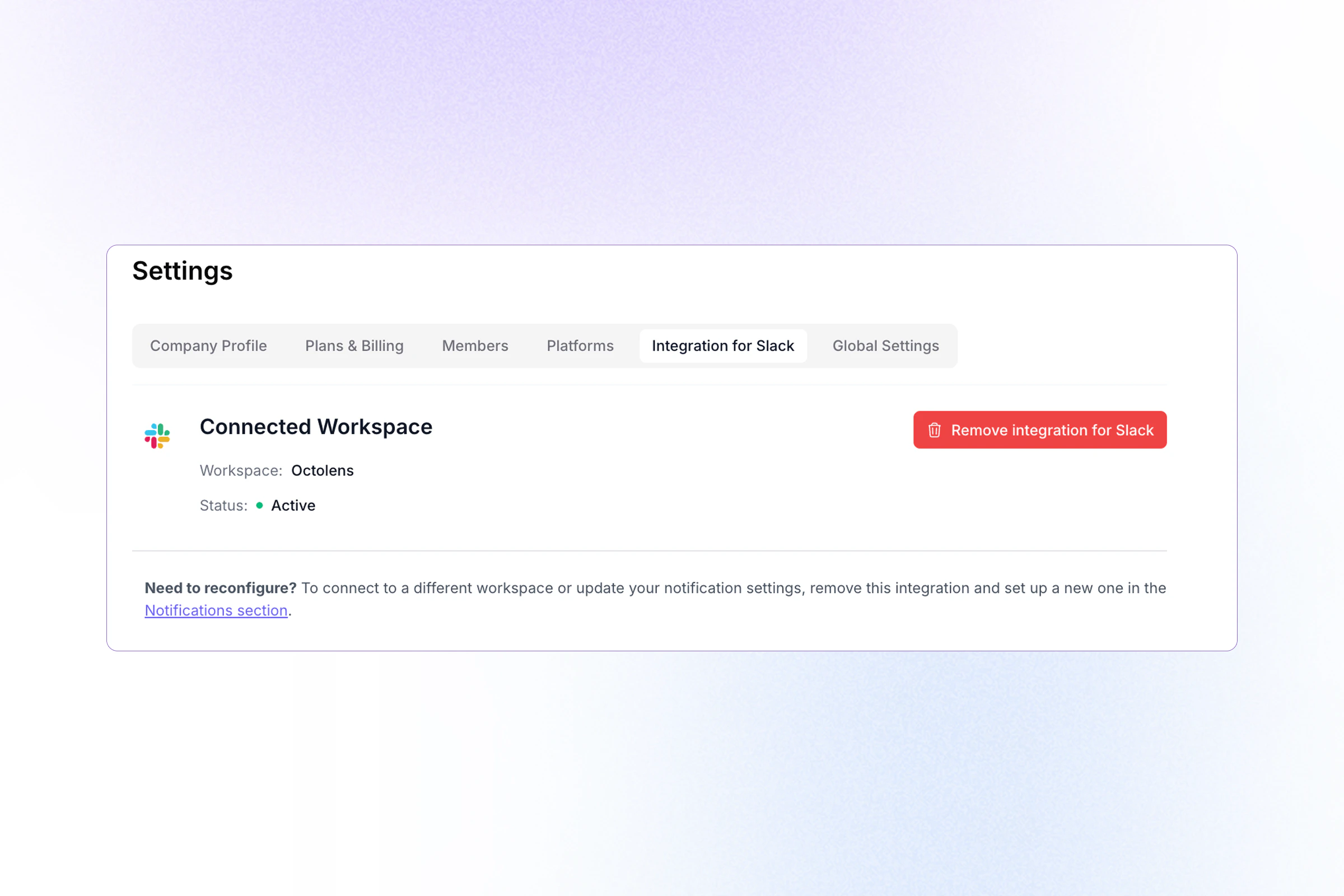
After authorizing, the Integration for Slack page shows:
* **Workspace:** the name of your connected Slack workspace
* **Status:** `Active` when the connection is healthy
If you see this, you're done. Slack will now appear as a destination option in the **Set up alert destination** sheet on every feed.
## What you can send to Slack
Any feed can be sent to Slack, which means you control exactly which mentions reach your team. Some common patterns:
* Send **Brand mentions** to a dedicated `#brand-watch` channel
* Send **Buy Intent** posts to your sales team's channel
* Send **Negative brand mentions** to a leadership or comms channel
* Send a custom feed (e.g. "negative mentions of our pricing") to the product team
See [Feeds](/docs/quickstart/feeds) for the default feeds and how to build custom ones.
## Pick channels and frequency
Channel selection and delivery frequency are configured **per feed**, not on this page:
* **Slack channels:** multi-select; a feed can post to more than one channel
* **Frequency:** Instantly, Hourly, Daily, or Weekly (batched)
See [Destinations](/docs/quickstart/destinations) for the full destination setup flow.
## Disconnect or switch workspaces
To disconnect Slack, click **Remove integration for Slack** on the Integration for Slack tab.
To switch to a different Slack workspace, remove the existing integration and then connect again. You'll be able to pick a new workspace during authorization.
Removing the integration stops all Slack deliveries immediately. Feeds configured to send to Slack will pause until a new workspace is connected.
## Next steps
* [Destinations](/docs/quickstart/destinations): set up Slack channels + delivery frequency on a feed
* [Feeds](/docs/quickstart/feeds): the saved filters that drive your destinations
* [Webhooks](/docs/quickstart/webhooks): another way to pipe mentions into your tools
## Confirm you're connected
After authorizing, the Integration for Slack page shows:
* **Workspace:** the name of your connected Slack workspace
* **Status:** `Active` when the connection is healthy
If you see this, you're done. Slack will now appear as a destination option in the **Set up alert destination** sheet on every feed.
## What you can send to Slack
Any feed can be sent to Slack, which means you control exactly which mentions reach your team. Some common patterns:
* Send **Brand mentions** to a dedicated `#brand-watch` channel
* Send **Buy Intent** posts to your sales team's channel
* Send **Negative brand mentions** to a leadership or comms channel
* Send a custom feed (e.g. "negative mentions of our pricing") to the product team
See [Feeds](/docs/quickstart/feeds) for the default feeds and how to build custom ones.
## Pick channels and frequency
Channel selection and delivery frequency are configured **per feed**, not on this page:
* **Slack channels:** multi-select; a feed can post to more than one channel
* **Frequency:** Instantly, Hourly, Daily, or Weekly (batched)
See [Destinations](/docs/quickstart/destinations) for the full destination setup flow.
## Disconnect or switch workspaces
To disconnect Slack, click **Remove integration for Slack** on the Integration for Slack tab.
To switch to a different Slack workspace, remove the existing integration and then connect again. You'll be able to pick a new workspace during authorization.
Removing the integration stops all Slack deliveries immediately. Feeds configured to send to Slack will pause until a new workspace is connected.
## Next steps
* [Destinations](/docs/quickstart/destinations): set up Slack channels + delivery frequency on a feed
* [Feeds](/docs/quickstart/feeds): the saved filters that drive your destinations
* [Webhooks](/docs/quickstart/webhooks): another way to pipe mentions into your tools