> ## Documentation Index
> Fetch the complete documentation index at: https://octolens.com/docs/llms.txt
> Use this file to discover all available pages before exploring further.
# Attio
> Bring Octolens social signals into Attio workflows. Trigger automations on new mentions, pull a person's mentions on demand, then create records, enrich contacts, and add timeline notes — you decide how the data maps to your CRM.
The [Octolens](https://octolens.com) app brings AI-scored social listening signals into Attio's workflows. Start an automation the moment a relevant mention appears, or pull a person's mentions on demand — then create records, enrich contacts, add timeline notes, notify your team, or anything else you can build in Attio. **You decide how the data maps to your CRM; Octolens supplies the signal.**
## Use cases
Close deals faster with more context from social posts.
Catch early signals to identify and mitigate churn risk.
Analyze how prospects talk about your brand, competitors, and industry.
Generate new contacts from posts like "alternative to competitor X".
## How it works
The app adds two capabilities to your Attio workspace, each with its own connection (both shown in the [Connections](#connections) tab):
* **Workflow blocks** — one trigger and two steps you compose into workflows yourself. Authenticated by the **Workspace connection**: an Octolens API key you paste once for the whole workspace.
* **Octolens MCP** — your mentions and keyword tools exposed to Attio's AI features (the Custom Agent workflow block and Attio Ask). Authenticated per member by a **Member connection** over OAuth. See [Octolens MCP in Attio](#octolens-mcp-in-attio).
For the workflow blocks:
* **Pull** (the two step blocks): the app reads your mentions from the Octolens REST API using the pasted key.
* **Push** (the trigger block): when you pick a view, the app attaches a webhook to that Octolens view pointing at an Attio-generated callback URL. Octolens then posts each new mention to Attio in near real time.
**Octolens never holds an Attio token and makes no changes to your data on its own.** Every write into Attio — create record, add note, send Slack — is a native Attio action *you* place in the workflow. You stay in control of every write.
## Requirements
* An Octolens account (any plan).
* Admin access to your Attio workspace to install the app.
## Setup
In Octolens, go to **Settings → API keys** and create a key with **Read + Write** scope.
* **Read** lets the app fetch your mentions (the two step blocks).
* **Write** lets the **New Octolens mention** trigger attach a webhook to the view you choose.
Install the Octolens app, open its **Connections** tab, and paste the key into the **Workspace connection** (see [Connections](#connections) below).
Add the Octolens trigger or any step to a workflow and configure it.
**Link people by social handle, not company name.** The author step matches on **X handle** and **LinkedIn profile URL** — deterministic identifiers you can map directly from your Attio Person records. Company-name matching is fuzzy and unreliable by comparison.
## Connections
The app's **Connections** tab has two sections, with different purposes.
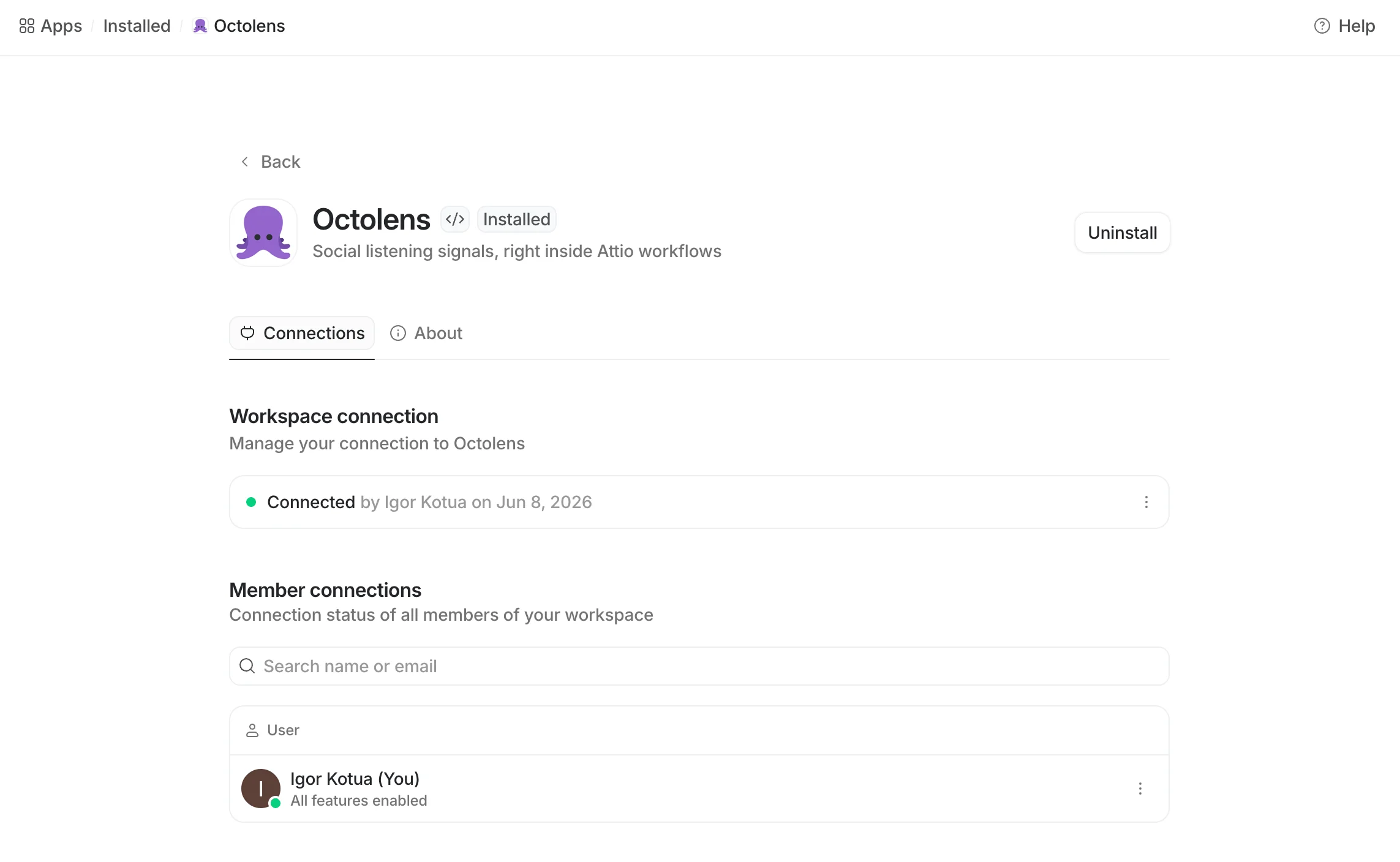 ### Workspace connection
This is where the **Octolens API key** goes — paste your **Read + Write** key here.
The field is labelled *Workspace connection*, not "API key", so it isn't obvious. Paste your Octolens API key into it.
This one credential powers all three workflow blocks (the trigger and both steps) for the entire workspace.
### Member connections
Each member can link their own Octolens account to **Octolens MCP** over OAuth — there's no key to copy, you just authorize. A member shows **All features enabled** once connected. This per-member connection is what powers Octolens inside Attio's AI features — see [Octolens MCP in Attio](#octolens-mcp-in-attio).
## Building blocks
### Trigger: New Octolens mention
Starts a workflow every time Octolens collects a new mention in a view you choose.
### Workspace connection
This is where the **Octolens API key** goes — paste your **Read + Write** key here.
The field is labelled *Workspace connection*, not "API key", so it isn't obvious. Paste your Octolens API key into it.
This one credential powers all three workflow blocks (the trigger and both steps) for the entire workspace.
### Member connections
Each member can link their own Octolens account to **Octolens MCP** over OAuth — there's no key to copy, you just authorize. A member shows **All features enabled** once connected. This per-member connection is what powers Octolens inside Attio's AI features — see [Octolens MCP in Attio](#octolens-mcp-in-attio).
## Building blocks
### Trigger: New Octolens mention
Starts a workflow every time Octolens collects a new mention in a view you choose.
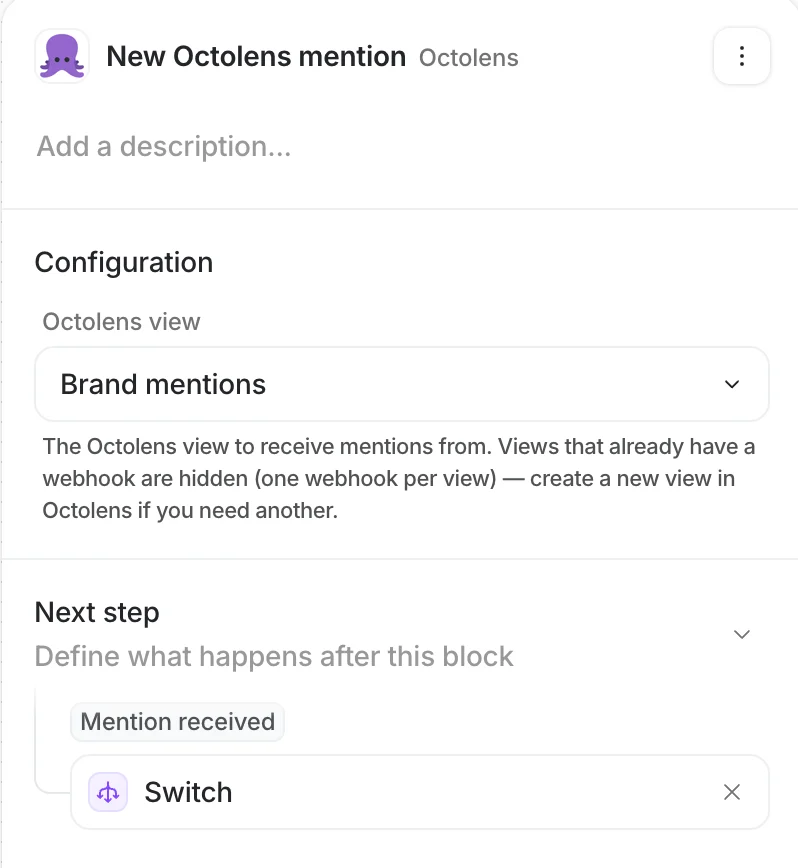 **Configuration**
* **Octolens view** — a searchable dropdown of your Octolens views (feeds). Views that already have a webhook are hidden, since a view drives one webhook. Create a new view in Octolens if you need another.
**How the connection works**
1. When the trigger is activated, the app calls the Octolens API and attaches a `WEBHOOK` destination to the chosen view, pointing at the unique callback URL Attio generated for this trigger.
2. The webhook is registered with **Instant** delivery, so Octolens fires it right after each ingestion-and-scoring cycle — near real time, not on a fixed hourly schedule.
3. Each incoming mention is **de-duplicated by its source ID**, so the same post never starts the workflow twice (even if delivered more than once).
4. When the trigger or workflow is deactivated, the app removes that exact webhook from the view. Nothing is left behind.
**Output: `Mention received`** — emits a single mention. All fields are strings.
| Field | Type | Description |
| ------------------- | ------ | ---------------------------------------------------------------------- |
| `source` | string | Platform the mention came from (e.g. `reddit`, `twitter`, `linkedin`). |
| `author` | string | Author's handle or username on the source platform. |
| `authorName` | string | Author's display name. |
| `authorProfileLink` | string | URL to the author's profile. |
| `body` | string | The post text. |
| `url` | string | Canonical URL to the post. |
| `sentiment` | string | `Positive`, `Neutral`, or `Negative`. |
| `keyword` | string | The primary keyword that matched the post. |
| `tags` | string | AI tags, comma-separated (e.g. `Buy Intent, Own Brand Mention`). |
### Step: Get mentions by author
Fetches a person's recent mentions by **X handle and/or LinkedIn profile URL** — map these straight from an Attio Person's attributes. Provide either or both.
**Configuration**
* **Octolens view** — a searchable dropdown of your Octolens views (feeds). Views that already have a webhook are hidden, since a view drives one webhook. Create a new view in Octolens if you need another.
**How the connection works**
1. When the trigger is activated, the app calls the Octolens API and attaches a `WEBHOOK` destination to the chosen view, pointing at the unique callback URL Attio generated for this trigger.
2. The webhook is registered with **Instant** delivery, so Octolens fires it right after each ingestion-and-scoring cycle — near real time, not on a fixed hourly schedule.
3. Each incoming mention is **de-duplicated by its source ID**, so the same post never starts the workflow twice (even if delivered more than once).
4. When the trigger or workflow is deactivated, the app removes that exact webhook from the view. Nothing is left behind.
**Output: `Mention received`** — emits a single mention. All fields are strings.
| Field | Type | Description |
| ------------------- | ------ | ---------------------------------------------------------------------- |
| `source` | string | Platform the mention came from (e.g. `reddit`, `twitter`, `linkedin`). |
| `author` | string | Author's handle or username on the source platform. |
| `authorName` | string | Author's display name. |
| `authorProfileLink` | string | URL to the author's profile. |
| `body` | string | The post text. |
| `url` | string | Canonical URL to the post. |
| `sentiment` | string | `Positive`, `Neutral`, or `Negative`. |
| `keyword` | string | The primary keyword that matched the post. |
| `tags` | string | AI tags, comma-separated (e.g. `Buy Intent, Own Brand Mention`). |
### Step: Get mentions by author
Fetches a person's recent mentions by **X handle and/or LinkedIn profile URL** — map these straight from an Attio Person's attributes. Provide either or both.
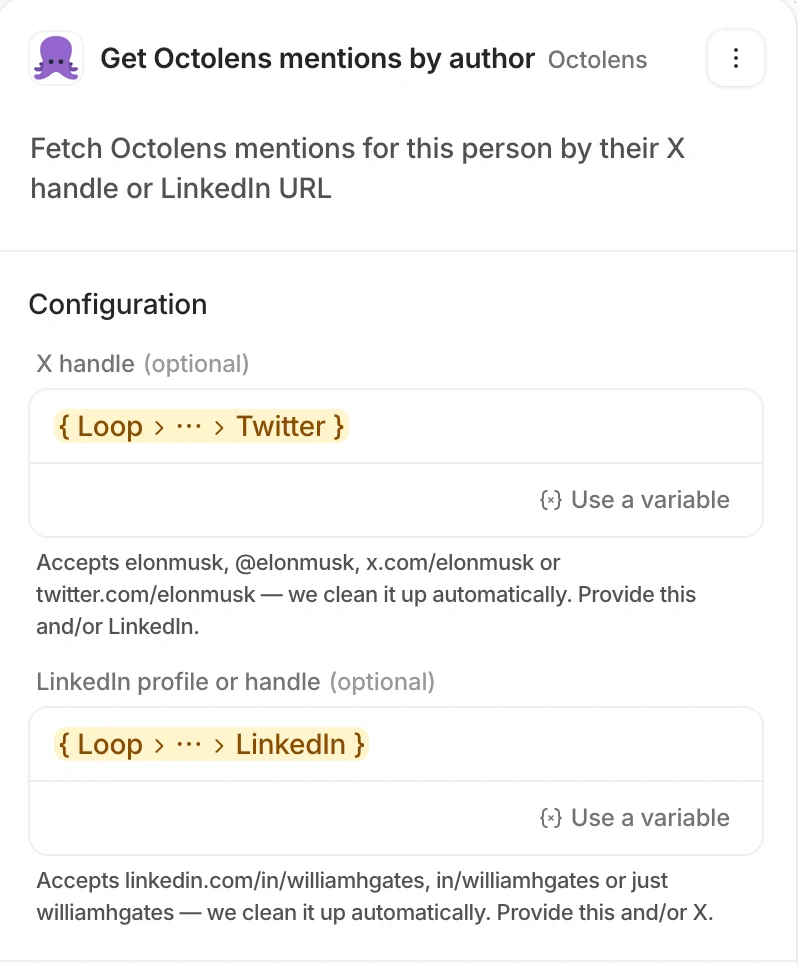 **Configuration**
| Input | Description |
| -------------- | ----------------------------------------------------------------------------------------------------------------------- |
| `handle` | X handle. Accepts `elonmusk`, `@elonmusk`, `x.com/elonmusk`, or `twitter.com/elonmusk` — it's normalized automatically. |
| `linkedin_url` | LinkedIn profile or handle. Accepts `linkedin.com/in/williamhgates`, `in/williamhgates`, or `williamhgates`. |
The step queries each identity against its platform (handle → X, URL → LinkedIn), merges the results, and de-duplicates by post ID. It returns up to 25 mentions per identity, newest first.
**Output: `Mentions`** — see [output shape](#step-output-shape) below.
### Step: Get mentions
Queries your mentions across the workspace by any combination of filters — the full simple-filter surface of the Octolens API. Every input is optional and AND-ed together; leaving everything empty returns recent mentions across the workspace.
**Configuration**
| Input | Description |
| ----------------- | ------------------------------------------------------------------ |
| `keyword_ids` | Comma-separated Octolens keyword IDs, e.g. `1234,5678`. |
| `tags` | Comma-separated AI tags, e.g. `buy_intent,competitor_mention`. |
| `sources` | Comma-separated platforms, e.g. `reddit,twitter,linkedin,youtube`. |
| `sentiment` | Comma-separated: `positive`, `neutral`, `negative`. |
| `languages` | Comma-separated ISO 639-1 codes, e.g. `en,es,de`. |
| `relevance` | Comma-separated: `high`, `medium`, `low`. |
| `engaged` | `true` or `false`. Leave empty for both. |
| `min_x_followers` | Minimum X/Twitter follower count for the author. |
| `max_x_followers` | Maximum X/Twitter follower count for the author. |
| `start_date` | Inclusive lower bound, ISO 8601, e.g. `2026-01-01`. |
| `end_date` | Inclusive upper bound, ISO 8601. |
| `limit` | Max results. Defaults to 25. |
**Output: `Mentions`** — see [output shape](#step-output-shape) below.
## Step output shape
Both step blocks return the same `Mentions` outcome: a count plus a list you can iterate over with Attio's loop / map actions. Every mention field is a string.
| Field | Type | Description |
| ----------------------- | ------ | --------------------------------------------- |
| `count` | number | Number of mentions returned. |
| `mentions` | list | The mentions. Each item has the fields below. |
| `mentions[].source` | string | Platform the mention came from. |
| `mentions[].author` | string | Author's handle or username. |
| `mentions[].authorName` | string | Author's display name. |
| `mentions[].authorUrl` | string | URL to the author's profile. |
| `mentions[].body` | string | The post text. |
| `mentions[].url` | string | Canonical URL to the post. |
| `mentions[].sentiment` | string | `Positive`, `Neutral`, or `Negative`. |
| `mentions[].keyword` | string | The primary keyword that matched the post. |
**Trigger vs. step field names differ slightly.** The trigger emits a single mention with `authorProfileLink` and a `tags` string; the steps return a list where the author URL is `authorUrl` and there is no `tags` field. If you build workflows that consume both, map them explicitly.
## Octolens MCP in Attio
Beyond the workflow blocks, the app exposes the **Octolens MCP server** to Attio's AI features. MCP gives the AI live access to your Octolens tools — list and filter mentions, look up mentions by author, read keywords, and more — using a member's own Octolens account.
To enable it, a member links their account under **[Member connections](#member-connections)** (OAuth). Once connected, Octolens shows up in two places:
* **Custom Agent workflow block** — set the agent's **Run As** to a **member** who has connected Octolens, and the agent can call Octolens MCP tools as part of its reasoning. Run As must be a member (not the workspace), because MCP auth is per member.
* **Attio Ask** — connected members can ask about their Octolens data directly in Attio Ask, and it queries Octolens through MCP.
The MCP surface uses **Member connections** (per-member OAuth), independent of the **Workspace connection** API key that powers the workflow blocks. Each member who wants Octolens in the Custom Agent block or Attio Ask connects their own account.
## Common patterns
From any block, use Attio's native actions to create or find records, add notes to a contact's timeline, send Slack or email, or branch on sentiment and intent tags. Two patterns cover most setups:
On **New Octolens mention**, find a Person by the mention's `author` / `authorProfileLink`. If matched, add the post as a timeline note and update last-seen fields.
On **New Octolens mention**, branch on `tags` containing `Buy Intent`. If present and no Person matches, create a new Person from the author and assign an owner.
A typical enrichment workflow:
Pick the view that holds the mentions you care about (e.g. a Buy Intent feed).
Map the trigger's `author` to your Person's X attribute, or `authorProfileLink` to LinkedIn.
**Matched** → add a timeline note with `body` + `url`. **No match** → create a Person and (optionally) gate on a `Buy Intent` tag first.
## Security & data handling
* The **Workspace connection** API key is the only credential for the workflow blocks. Octolens never receives or stores an Attio token.
* **Read** scope is used for the two pull steps; **Write** scope is used solely to attach and detach the trigger's webhook on the view you select.
* The **MCP surface uses per-member OAuth** (Member connections), scoped to each member's own Octolens account — no shared key, and members connect (or disconnect) themselves.
* Octolens performs **no writes into Attio**. Every record, note, and message is a native Attio action you configure.
* Removing the trigger (or uninstalling the app) detaches the webhook it created from your Octolens view.
## Next steps
The same REST API the step blocks call, if you'd rather poll directly.
The underlying mention webhook payload the trigger is built on.
How views (feeds) and their filters work in Octolens.
What the sentiment and intent tags mean.
**Configuration**
| Input | Description |
| -------------- | ----------------------------------------------------------------------------------------------------------------------- |
| `handle` | X handle. Accepts `elonmusk`, `@elonmusk`, `x.com/elonmusk`, or `twitter.com/elonmusk` — it's normalized automatically. |
| `linkedin_url` | LinkedIn profile or handle. Accepts `linkedin.com/in/williamhgates`, `in/williamhgates`, or `williamhgates`. |
The step queries each identity against its platform (handle → X, URL → LinkedIn), merges the results, and de-duplicates by post ID. It returns up to 25 mentions per identity, newest first.
**Output: `Mentions`** — see [output shape](#step-output-shape) below.
### Step: Get mentions
Queries your mentions across the workspace by any combination of filters — the full simple-filter surface of the Octolens API. Every input is optional and AND-ed together; leaving everything empty returns recent mentions across the workspace.
**Configuration**
| Input | Description |
| ----------------- | ------------------------------------------------------------------ |
| `keyword_ids` | Comma-separated Octolens keyword IDs, e.g. `1234,5678`. |
| `tags` | Comma-separated AI tags, e.g. `buy_intent,competitor_mention`. |
| `sources` | Comma-separated platforms, e.g. `reddit,twitter,linkedin,youtube`. |
| `sentiment` | Comma-separated: `positive`, `neutral`, `negative`. |
| `languages` | Comma-separated ISO 639-1 codes, e.g. `en,es,de`. |
| `relevance` | Comma-separated: `high`, `medium`, `low`. |
| `engaged` | `true` or `false`. Leave empty for both. |
| `min_x_followers` | Minimum X/Twitter follower count for the author. |
| `max_x_followers` | Maximum X/Twitter follower count for the author. |
| `start_date` | Inclusive lower bound, ISO 8601, e.g. `2026-01-01`. |
| `end_date` | Inclusive upper bound, ISO 8601. |
| `limit` | Max results. Defaults to 25. |
**Output: `Mentions`** — see [output shape](#step-output-shape) below.
## Step output shape
Both step blocks return the same `Mentions` outcome: a count plus a list you can iterate over with Attio's loop / map actions. Every mention field is a string.
| Field | Type | Description |
| ----------------------- | ------ | --------------------------------------------- |
| `count` | number | Number of mentions returned. |
| `mentions` | list | The mentions. Each item has the fields below. |
| `mentions[].source` | string | Platform the mention came from. |
| `mentions[].author` | string | Author's handle or username. |
| `mentions[].authorName` | string | Author's display name. |
| `mentions[].authorUrl` | string | URL to the author's profile. |
| `mentions[].body` | string | The post text. |
| `mentions[].url` | string | Canonical URL to the post. |
| `mentions[].sentiment` | string | `Positive`, `Neutral`, or `Negative`. |
| `mentions[].keyword` | string | The primary keyword that matched the post. |
**Trigger vs. step field names differ slightly.** The trigger emits a single mention with `authorProfileLink` and a `tags` string; the steps return a list where the author URL is `authorUrl` and there is no `tags` field. If you build workflows that consume both, map them explicitly.
## Octolens MCP in Attio
Beyond the workflow blocks, the app exposes the **Octolens MCP server** to Attio's AI features. MCP gives the AI live access to your Octolens tools — list and filter mentions, look up mentions by author, read keywords, and more — using a member's own Octolens account.
To enable it, a member links their account under **[Member connections](#member-connections)** (OAuth). Once connected, Octolens shows up in two places:
* **Custom Agent workflow block** — set the agent's **Run As** to a **member** who has connected Octolens, and the agent can call Octolens MCP tools as part of its reasoning. Run As must be a member (not the workspace), because MCP auth is per member.
* **Attio Ask** — connected members can ask about their Octolens data directly in Attio Ask, and it queries Octolens through MCP.
The MCP surface uses **Member connections** (per-member OAuth), independent of the **Workspace connection** API key that powers the workflow blocks. Each member who wants Octolens in the Custom Agent block or Attio Ask connects their own account.
## Common patterns
From any block, use Attio's native actions to create or find records, add notes to a contact's timeline, send Slack or email, or branch on sentiment and intent tags. Two patterns cover most setups:
On **New Octolens mention**, find a Person by the mention's `author` / `authorProfileLink`. If matched, add the post as a timeline note and update last-seen fields.
On **New Octolens mention**, branch on `tags` containing `Buy Intent`. If present and no Person matches, create a new Person from the author and assign an owner.
A typical enrichment workflow:
Pick the view that holds the mentions you care about (e.g. a Buy Intent feed).
Map the trigger's `author` to your Person's X attribute, or `authorProfileLink` to LinkedIn.
**Matched** → add a timeline note with `body` + `url`. **No match** → create a Person and (optionally) gate on a `Buy Intent` tag first.
## Security & data handling
* The **Workspace connection** API key is the only credential for the workflow blocks. Octolens never receives or stores an Attio token.
* **Read** scope is used for the two pull steps; **Write** scope is used solely to attach and detach the trigger's webhook on the view you select.
* The **MCP surface uses per-member OAuth** (Member connections), scoped to each member's own Octolens account — no shared key, and members connect (or disconnect) themselves.
* Octolens performs **no writes into Attio**. Every record, note, and message is a native Attio action you configure.
* Removing the trigger (or uninstalling the app) detaches the webhook it created from your Octolens view.
## Next steps
The same REST API the step blocks call, if you'd rather poll directly.
The underlying mention webhook payload the trigger is built on.
How views (feeds) and their filters work in Octolens.
What the sentiment and intent tags mean.