> ## Documentation Index
> Fetch the complete documentation index at: https://octolens.com/docs/llms.txt
> Use this file to discover all available pages before exploring further.
# Claude Desktop & Web
> Connect Octolens to Claude Desktop or claude.ai and ask about your mentions in plain language.
You connect Claude with a server URL and sign in with your Octolens account. There's no API key to paste.
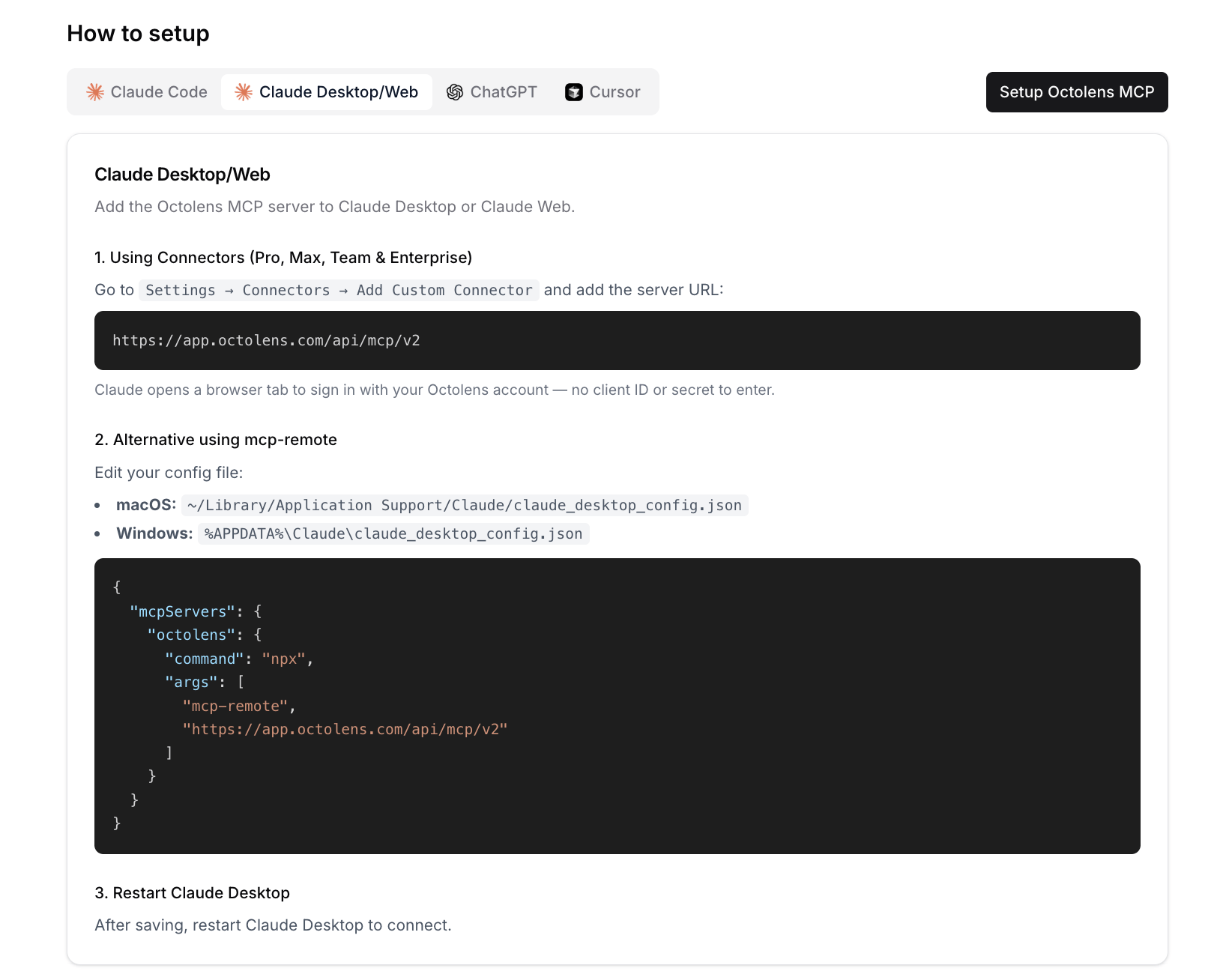
You can also start this from the app: **Settings → MCP → Setup Octolens MCP** walks you through the same steps.
## Option 1: Connectors (Pro, Max, Team and Enterprise)
In Claude, go to **Settings → Connectors → Add Custom Connector** and paste this URL:
```text theme={null}
https://app.octolens.com/api/mcp/v2
```
Claude opens a browser tab. Sign in with your Octolens account and approve the connection. You don't need a client ID or secret.
## Option 2: Config file (mcp-remote)
* **macOS:** `~/Library/Application Support/Claude/claude_desktop_config.json`
* **Windows:** `%APPDATA%\Claude\claude_desktop_config.json`
```json theme={null}
{
"mcpServers": {
"octolens": {
"command": "npx",
"args": [
"mcp-remote",
"https://app.octolens.com/api/mcp/v2"
]
}
}
}
```
Restart the app after saving. On first use, a browser tab opens so you can sign in to Octolens.
 ## Try it
* "Summarize what people said about us on Reddit this week."
* "Show me buy-intent mentions from the last 30 days."
## Next steps
* [Use cases](/docs/mcp/v2/use-cases): prompts that work well
* [Tools Reference](/docs/mcp/v2/tools): everything Claude can do in your workspace
* [API](/docs/api/v2/overview) and [CLI](/docs/cli/overview): for scripts and automations
This documentation is built and hosted on [Mintlify](https://mintlify.com), a developer documentation platform.
## Try it
* "Summarize what people said about us on Reddit this week."
* "Show me buy-intent mentions from the last 30 days."
## Next steps
* [Use cases](/docs/mcp/v2/use-cases): prompts that work well
* [Tools Reference](/docs/mcp/v2/tools): everything Claude can do in your workspace
* [API](/docs/api/v2/overview) and [CLI](/docs/cli/overview): for scripts and automations
This documentation is built and hosted on [Mintlify](https://mintlify.com), a developer documentation platform.