> ## Documentation Index
> Fetch the complete documentation index at: https://octolens.com/docs/llms.txt
> Use this file to discover all available pages before exploring further.
# ChatGPT
> Connect Octolens to ChatGPT and ask about your mentions in plain language.
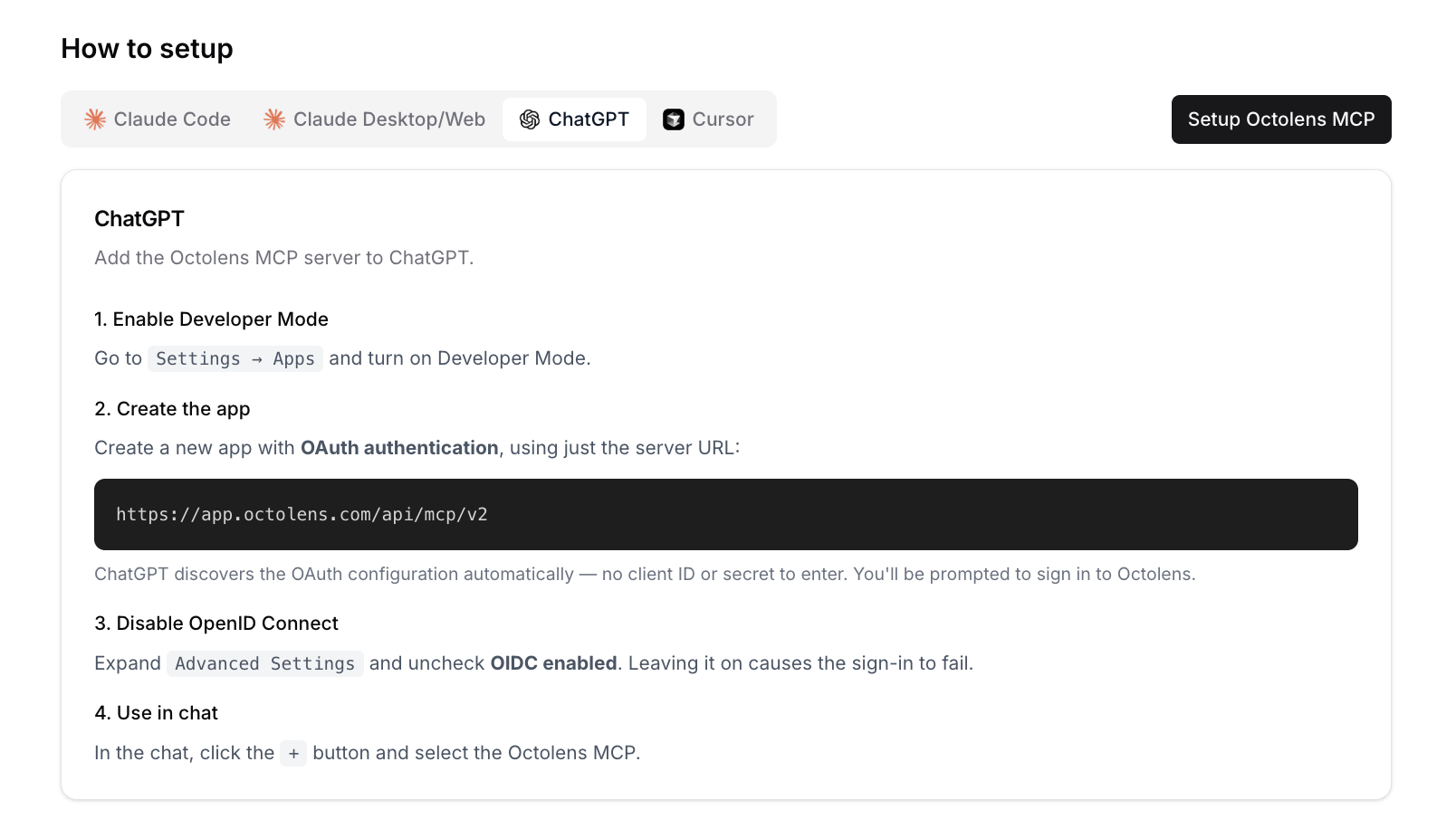
You add Octolens as an app in ChatGPT and sign in with your Octolens account. There's no API key to paste.
You can also start this from the app: **Settings → MCP → Setup Octolens MCP** walks you through the same steps.
In ChatGPT, go to **Settings → Apps** and turn on Developer Mode.
Create a new app with **OAuth** authentication and this URL:
```text theme={null}
https://app.octolens.com/api/mcp/v2
```
ChatGPT finds the sign-in settings on its own, so you don't need a client ID or secret.
Expand **Advanced Settings** and uncheck **OIDC enabled**. If you leave it on, sign-in fails.
Sign in to Octolens when ChatGPT asks. In a chat, click **+** and select Octolens.
 ## Try it
* "What changed in our mentions this week compared with last week?"
* "Show me negative mentions that still need a reply."
## Next steps
* [Use cases](/docs/mcp/v2/use-cases): prompts that work well
* [Tools Reference](/docs/mcp/v2/tools): everything ChatGPT can do in your workspace
* [API](/docs/api/v2/overview) and [CLI](/docs/cli/overview): for scripts and automations
This documentation is built and hosted on [Mintlify](https://mintlify.com), a developer documentation platform.
## Try it
* "What changed in our mentions this week compared with last week?"
* "Show me negative mentions that still need a reply."
## Next steps
* [Use cases](/docs/mcp/v2/use-cases): prompts that work well
* [Tools Reference](/docs/mcp/v2/tools): everything ChatGPT can do in your workspace
* [API](/docs/api/v2/overview) and [CLI](/docs/cli/overview): for scripts and automations
This documentation is built and hosted on [Mintlify](https://mintlify.com), a developer documentation platform.